Make 4Search yours
On this page
This guide sets 4Search up the way you use it, in about five minutes: a colour theme, the one privacy choice that lets the site keep your lists, the things you follow, your home place and units, and an icon on your phone.
#Pick a colour theme
-
Look at the top right of any page, beside Menu. The theme button shows the theme in use: Hybrid, Light or Dark.

The theme button names the theme you are in now.
- 1The theme in use; select it to switch to the next one
- 2The Menu
-
Select it to move to the next theme, in the order Hybrid, Light, Dark.
-
To go straight to one, use the Colour theme chooser in the footer.
The theme is kept in your browser without any privacy choice, separately on each site. 4Search does not follow your device's dark mode. See Choose Hybrid, Light or Dark.
#Let the site keep your lists
Lists and places are kept only if you switch on Saved preferences, an optional privacy choice. The first time you follow something, a box asks.
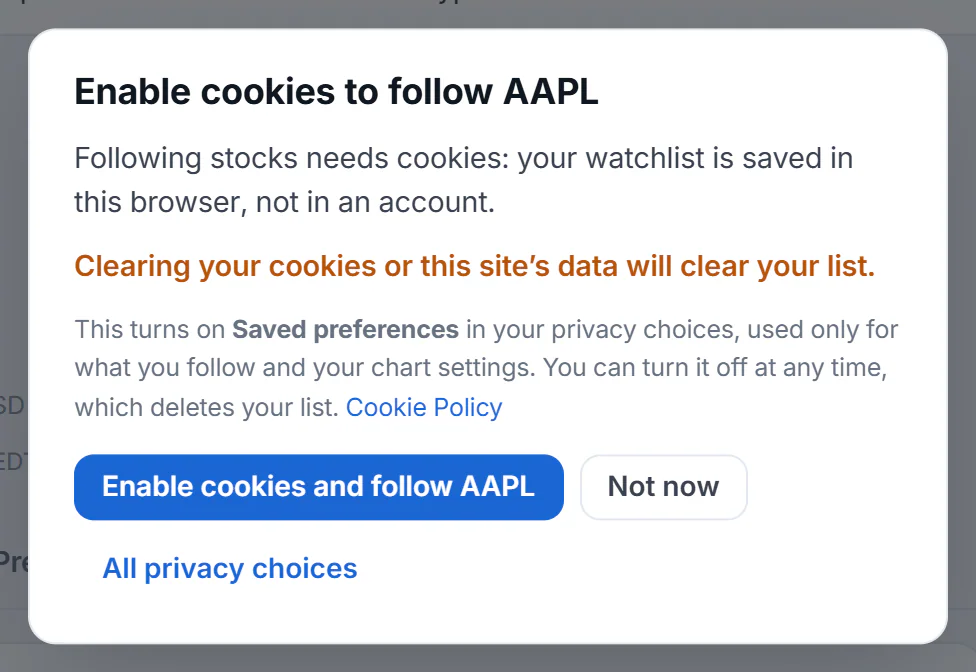
The first time you follow something, 4Search explains why it needs cookies and lets you choose.
- 1Enable cookies and follow
- 2Not now
- 3All privacy choices
Enable cookies and follow turns on Saved preferences and nothing else: AI answers and advertising stay as they were. You can also switch it on in the privacy panel. Turning it off later deletes what it kept. See Saved preferences.
#Follow what you check often
Select Follow, or the star, on anything you look at every day. Each service keeps its own list:
| You follow | Your list | Up to |
|---|---|---|
| Stocks, funds, indexes, currencies, coins | Watchlist in Finance | 50 |
| Members, committees, bills, races, markets | Following in Politics | 60 |
| Prediction markets | Following in Predictions | 100 |
| Weather places | My places in Weather | 30 |
| Map places | Saved in Maps | 500 |
| Topics | Your topics, and first on the front page | 50 |
Lists appear on the sites that have each service. Nothing sends you alerts: open your list to see what changed. See Follow stocks, topics, places and more.
#Set your home place and units
-
Open Weather, search for your ZIP code or city, and select Set as home on its page.

Set as home sits beside Follow and the °F and °C switch.
- 1Follow this place
- 2Set as home
- 3Degrees F or C
-
Choose °F or °C at the top of the same page.
-
In Maps, open Layers and choose mi or km under Distances in.
-
In Predictions, use the %, US and Dec switch to write odds as percentages, American odds or decimal odds.
The Weather overview then opens on your home place, and a search for weather shows it. Each service keeps its own units. See Set a home place and choose your units.
#Put it on your home screen
-
Open the Menu. At the bottom are Install app (Android) and Add to Home Screen (iPhone).
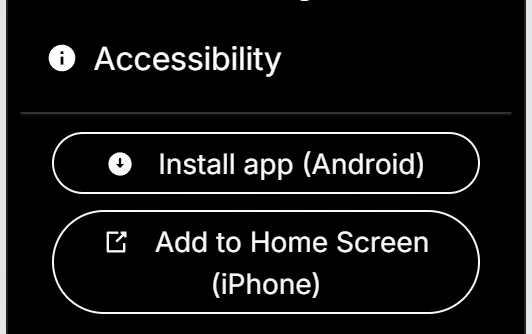
The two install buttons at the bottom of the Menu.
- 1Install app (Android)
- 2Add to Home Screen (iPhone)
-
On Android, select Install app (Android) and confirm your browser's prompt, or follow the card's steps.
-
On iPhone, select Add to Home Screen (iPhone), then tap Share in your browser, Add to Home Screen and Add.
The icon opens the site in its own window. Each site of the 4 Network installs as its own app. See Install 4Search as an app.
#Common questions
Will my setup follow me to my other devices?
No. Everything stays in the browser where you set it. Set it up again on the other device.
Why did everything reset?
The browser's data for the site was cleared, Saved preferences was turned off, or you are in a private window. See My choices, followed items or settings are not remembered.
Do I need an account for any of this?
No. 4Search has no sign-in for visitors.